
By using this site, you agree to the Privacy Policy and Terms of Use.
Accept
Techticia.comTechticia.comTechticia.com
  • Home
  • Recent
  • Jobs
  • Categories
    • News
    • AI
    • Apple
    • Gadgets
    • Startups
    • Wearables
  • Pages
    • Privacy Policy
    • About Us
    • Contact Us
    • Terms and Conditions
Search
Emerging Tech
  • Wearables
Business & Policy
  • Startups
Mobility & Culture
  • Contact
  • Blog
  • Privacy Policy
  • Terms of Use
© 2026 Techticia.com. All Rights Reserved.
Reading: Sync Apple Music Across Devices: Easy Setup Guide
Share
Sign In
Notification Show More
Font ResizerAa
Techticia.comTechticia.com
Font ResizerAa
Search
  • Home
  • Recent
  • Jobs
  • Categories
    • News
    • AI
    • Apple
    • Gadgets
    • Startups
    • Wearables
  • Pages
    • Privacy Policy
    • About Us
    • Contact Us
    • Terms and Conditions
Have an existing account? Sign In
Follow US
  • Contact
  • Blog
  • Privacy Policy
  • Terms of Use
© 2026 Techticia.com. All Rights Reserved.
Techticia.com > Blogs > Apple > Sync Apple Music Across Devices: Easy Setup Guide
AppleApps

Sync Apple Music Across Devices: Easy Setup Guide

Matilda Lucia, Techticia.com author avatar
Last updated: November 8, 2026 4:23 am
Matilda
Share
Sync Apple Music Across Devices: Easy Setup Guide
Credit: Apple
SHARE

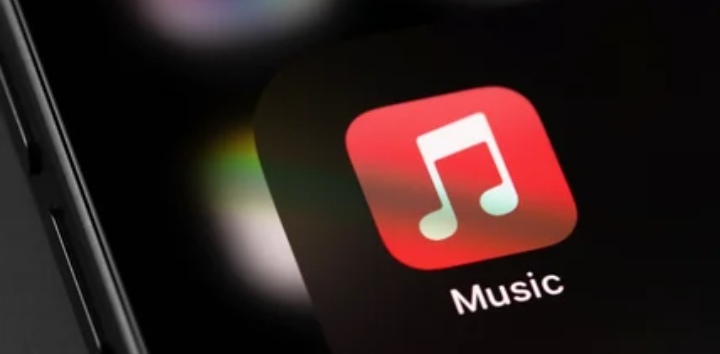
You can sync Apple Music across devices without managing your library by hand on each one. The service works on far more than just Apple hardware. Sign in with your Apple Account and you can stream your favorite songs on an Android phone, a Windows PC, or even a smart TV.

Contents
  • Turn On Sync Library in Apple Music
    • First, Check Your Account
    • Enable Sync Library on Each Device
  • What to Do When Apple Music Won’t Sync
    • Quick Fixes to Try
  • Syncing a Local Library Without a Subscription
  • While You’re in Settings
  • Keep Every Device in Tune

After signing in on a new device, though, you may notice that your music library isn’t there. If that’s happened to you, don’t worry. Changing a single setting will prompt Apple Music to sync your music across all your devices.

Turn On Sync Library in Apple Music

First, Check Your Account

The main reason Apple Music might not sync your library across devices is that you’re using different accounts on each device, so check that first. If you’re not sure which account you’re using, open the Apple Music app and tap your profile picture on the Home tab. If the email address on the unsynced device doesn’t match, you’re signed in on a different account. Sign out, then log in using your primary Apple Account.

Enable Sync Library on Each Device

Once you’ve confirmed you’re using the same account everywhere, make sure Sync Library is enabled on your devices:

  • iPhone or iPad: Open Settings and look for Apps. Then find the Music app in the list and enable Sync Library.

  • Mac: Open the Music app and click the Music menu at the top of the screen, then go to Settings. Under the General tab, make sure Sync Library is enabled and click OK to save your settings.

  • Windows: The process is pretty much the same, but you need to click the three-dot button instead to find Settings.

  • Android: This option is enabled by default, and you don’t need to change anything.

The first sync might take a while, especially if you have a large music library. If you don’t see your songs right away after enabling syncing, leave the Music app open and wait a few minutes.

What to Do When Apple Music Won’t Sync

If your library still isn’t syncing, try forcing an update. In the Mac app, click the File menu, then go to Library and select Update Cloud Library. This will force the app to sync and check for updates in your personal library. The same option is available in the Windows app and can be found in the sidebar. Unfortunately, the Android and iOS apps don’t have that option.

Also make sure your mobile devices are connected to Wi-Fi and not in Low Power Mode, as this may prevent them from syncing your music library.

Quick Fixes to Try

If nothing else has worked, go back to Settings, turn off Sync Library, and then turn it back on. You can also try signing out of your Apple Account and logging back in. These simple resets often clear up a stuck sync.

Syncing a Local Library Without a Subscription

If you don’t subscribe to Apple Music and have an offline library on your Mac or PC, the only way to sync your library is to manually transfer the Music folder to another computer using Apple iTunes or Apple Devices.

While You’re in Settings

Syncing behavior isn’t the only setting you might want to change in Apple Music. While you’re there, it’s worth exploring other toggles, like changing the audio quality options to enable lossless audio. A few minutes in settings can noticeably improve how your music sounds and behaves across devices.

Keep Every Device in Tune

Getting your library to sync Apple Music properly comes down to two things: using the same Apple Account everywhere and enabling Sync Library on each device. From there, most sync problems clear up with a forced update, a Wi-Fi connection, or a quick toggle off and on. Set it up once and your songs follow you from phone to laptop to TV without any manual copying.

Apple Antitrust Settlement: Developers Doubt Real Change
Apple One Price Increase Hits 12 European Countries
Camera-Equipped AirPods: Apple’s Privacy-First Approach
ChatGPT Apple Messages Plugin: Send Texts via AI
App Tracking Transparency Germany: Apple Agrees to Changes

Sign Up for Our Daily Newsletter

Get the latest breaking news and updates delivered straight to your inbox.
By signing up, you agree to our Terms and Conditions and acknowledge the data practices in our Privacy Policy. You may unsubscribe at any time.
Share This Article
Facebook Copy Link Print
Share
Matilda Lucia, Techticia.com author avatar
ByMatilda
Follow:
At Techticia.com, I cover technology, gadgets, AI, product reviews and practical consumer tips, helping readers follow the tools and trends shaping the digital world.
Previous Article Halide iPhone Duo Update Brings Foldable Camera Features Halide iPhone Duo Update Brings Foldable Camera Features
Next Article Backglow MacBook App: Control the Glowing Apple Logo Backglow MacBook App: Control the Glowing Apple Logo
Leave a Comment

Leave a Reply Cancel reply

Your email address will not be published. Required fields are marked *

Stay Connected

FacebookLike
XFollow
InstagramFollow
YoutubeSubscribe
WhatsAppFollow
LinkedInFollow
ThreadsFollow
BlueskyFollow

 banner							
 banner
Find your people. Find your next chapter.
Connect, explore jobs, and share what you love.
Get Semasocial

Latest News

Backglow MacBook App: Control the Glowing Apple Logo
Apple Gadgets
Halide iPhone Duo Update Brings Foldable Camera Features
Apple Gadgets
Qwen Model Upload: Cohere's Alibaba Test Explained
Qwen Model Upload: Cohere’s Alibaba Test Explained
AI
Win Enterprise Customers: Secrets From Databricks Co-Founder
Startups

You Might also Like

Bluesound Apple Music Support Arrives in Free BluOS Update
AppleNews

Bluesound Apple Music Support Arrives in Free BluOS Update

Matilda Lucia, Techticia.com author avatar
Matilda
5 Min Read
Siri AI Waitlist: What to Know About iOS 27 Access
AIApple

Siri AI Waitlist: What to Know About iOS 27 Access

Matilda Lucia, Techticia.com author avatar
Matilda
6 Min Read

Siri Spotify iOS 27: Play Music Without Saying “on Spotify”

Matilda Lucia, Techticia.com author avatar
Matilda
7 Min Read
//

Craving the latest tech news? Techticia delivers! Dive deep into insightful articles on everything from cutting-edge gadgets and AI advancements to reviews, consumer tips, and future tech trends. Techticia.com keeps you informed and connected to the ever-evolving world of technology.

Sign Up for Our Newsletter

Subscribe to our newsletter to get our newest articles instantly!

Techticia.comTechticia.com
Follow US
© 2026 Techticia.com. All Rights Reserved.
Stay Ahead with Techticia
Get the latest technology news, reviews, guides, and updates from Techticia delivered to your inbox.
By subscribing, you agree to our Privacy Policy. Unsubscribe at any time.
Welcome Back!

Sign in to your account

Username or Email Address
Password

Lost your password?